
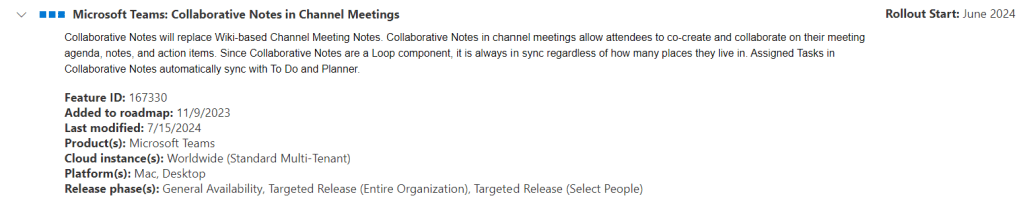
Finally Collaborative Notes in Microsoft Teams Channel Meetings is beeing rolled out and many of us have already gotten it.
In my previous blog post “Use Microsoft Teams the right way – Part 3 – Better Teams Meetings when using Channel Meetings” i wrote about the weaknesses in information governance when, following old habits, inviting to Teams meetings from your Outlook calendar or from your calendar in Teams.
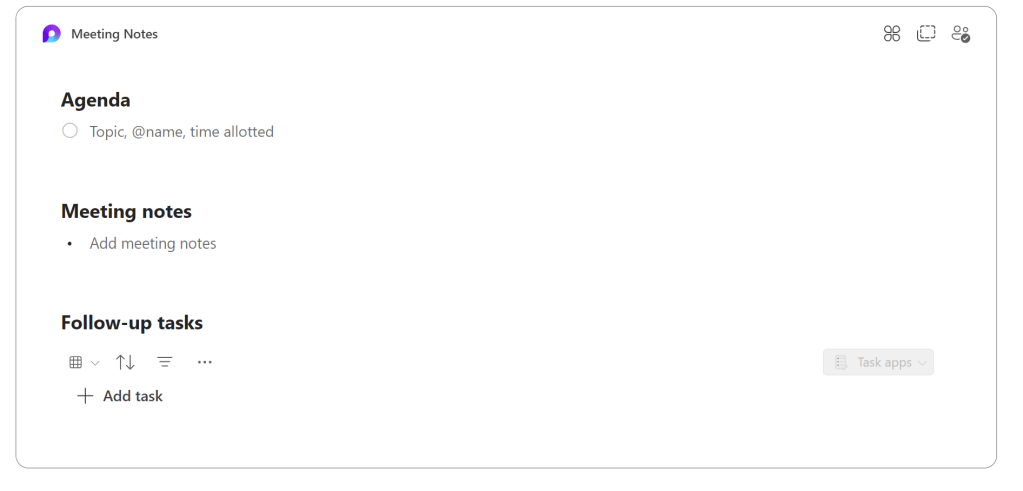
Channel Meetings is nothing new. We have been able to conduct Channel meetings for a long time now and for some time also collaborative meeting notes, but with Collaborative Notes in Channel Meetings, which is now being rolled out, we are given completely new opportunities to plan, conduct and follow up our Team meetings both in terms of efficiency and good information structure (where all relevant related information is stored – and can be found in the right context).
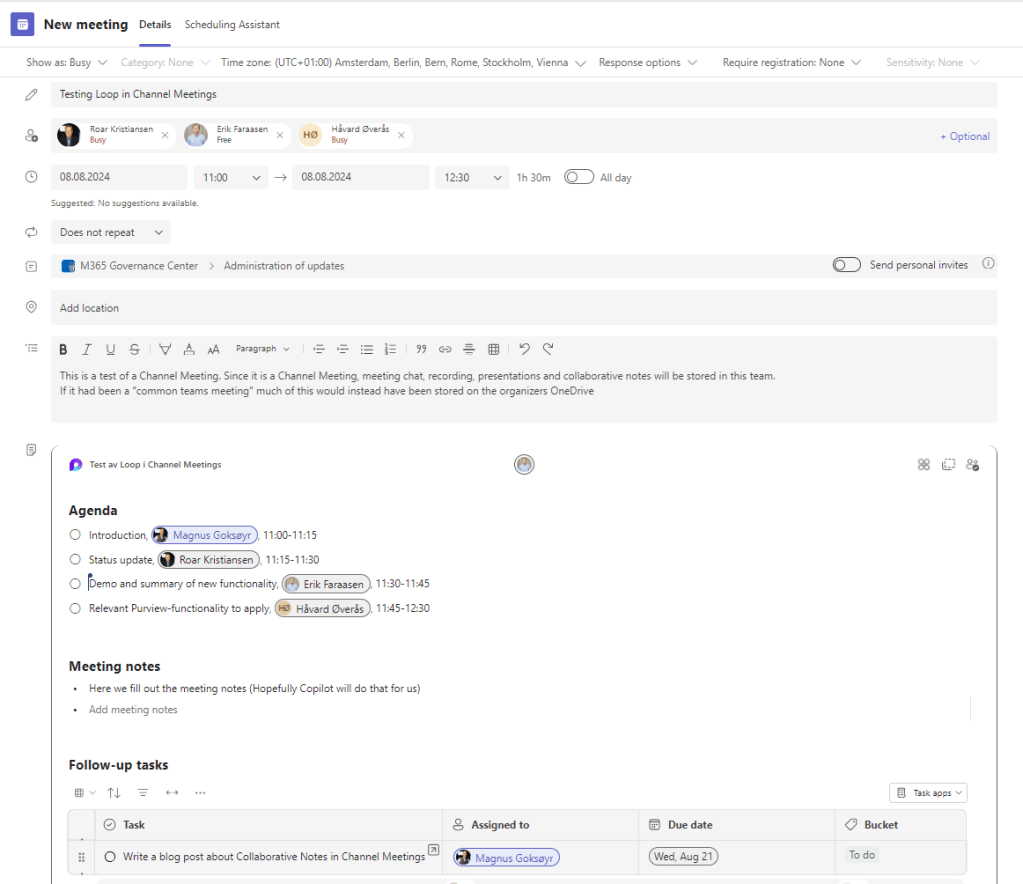
Everything that has to do with the meeting (Recording of the meeting, the meeting’s chat, the meeting’s presentations as well as the agenda, notes and the follow-up tasks that are defined) can be found in the channel you schedule/create the meeting in.
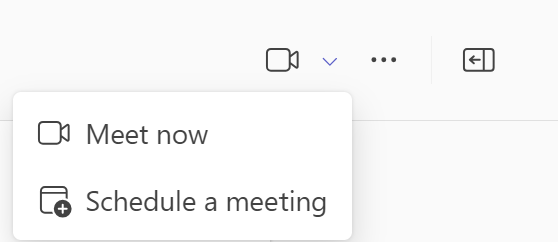
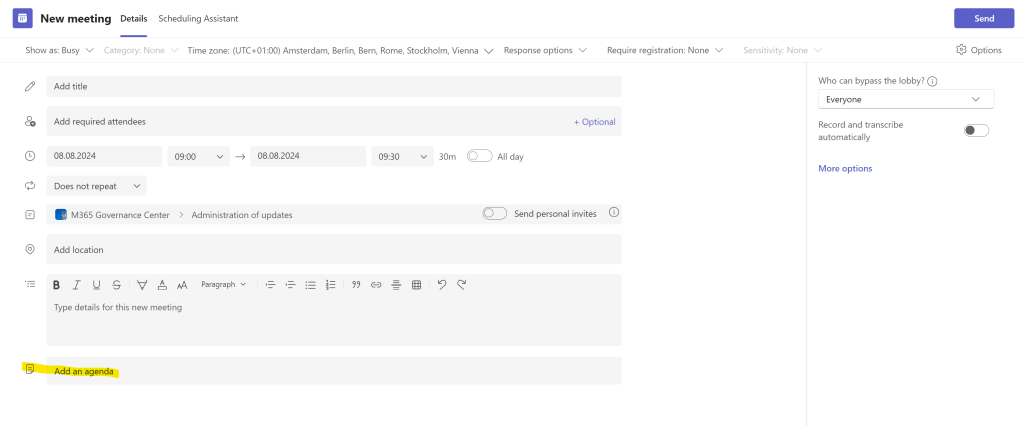
If you’re one of the lucky ones who now have access to Collaborative Notes in Channel meetings (go into a team channel and schedule a channel meeting and you’ll see if you got it) then I highly recommend reading my previous blog post “Use Microsoft Teams the right way – Part 3 – Better Teams Meetings when using Channel Meetings” on how to conduct team meetings from a technical perspective.
If you don’t have access to Collaborative Notes yet, it could be due to two things.
- Some Administrator has, for one or another probably well-thought-out reason, blocked the use of Microsoft Loop in your organization. Then talk to him/her a little nicely to edit the settings for Loop functionality in Teams and with some good arguments and flattery and maybe things will work out.
And/Or - The functionality has not yet been rolled out to your organization. Then just be patient and try again in a few days to see if it has appeared.
I’ll be back with a follow-up blog post with my reflections on the benefits and possible weaknesses as soon as I’ve put this to the test.
(In fact, I have already started testing and tormenting some of my colleagues. 👇 )









Leave a Reply