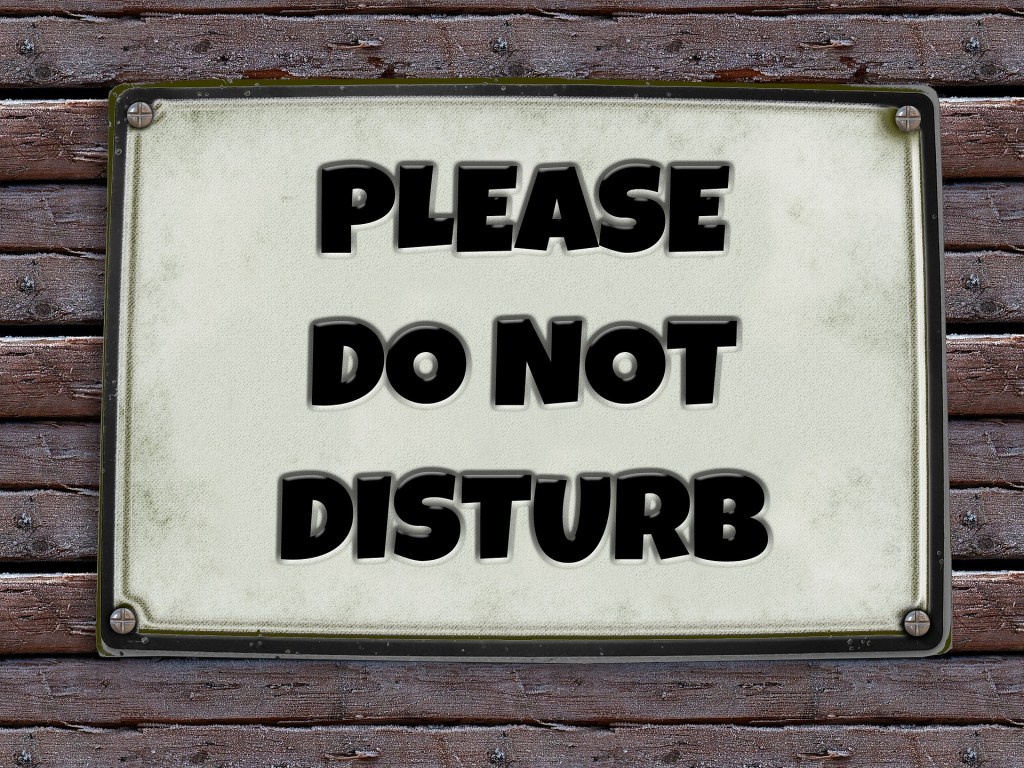
When you work in Microsoft Teams and your status is set to “do not disturb”, it’s logical that you will not receive any notifications. However, there is a feature that allows you to override this feature.

Despite the status “Do not disturb” you can receive notifications from specific (and extra important) people, such as your boss.

Here’s how to do it

  1. Click on your profile picture
  2. Click on Settings
  3. Click on Privacy
  4. Click on the button “Manage priority access
  5. Add those people who shall be entitled to disturb you even if your status is “do not disturb”.

That´s it!

Leave a comment

This site uses Akismet to reduce spam. Learn how your comment data is processed.

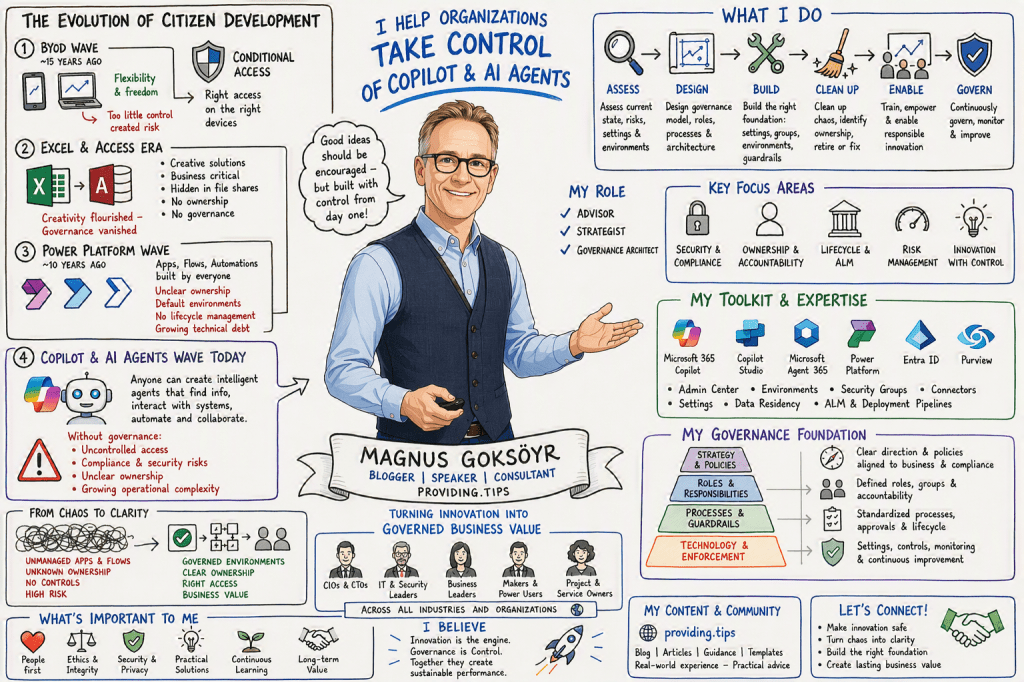
I’m Magnus

I am the person behind this blog, created to share experiences, insights, news, practical guidance, tips & tricks, constructive feedback, and reviews. While the blog covers most of Microsoft 365, a significant focus is on AI, Microsoft Copilot, security, and the governance frameworks required to use these technologies responsibly and effectively.

I am passionate about exploring, testing, and evaluating new applications, features, and solutions. However, I am equally passionate about understanding how to implement them securely and successfully. For me, technology is not only about innovation and productivity, but also about security, compliance, governance, and risk management. My goal is to help organizations and people maximize the value of Microsoft 365 and AI while ensuring that security, data protection, and responsible adoption remain at the center of every decision.