
In my previous post Why Microsoft 365 Security matters for Microsoft 365 Copilot and why it should be prioritized. – Providing Tips I said that I would follow it up with more details about SharePoint Advanced Management (SAM) and how SAM can, with benefit, be used to identify and manage “Information oversharing”. I will cover the topic of Information Oversharing in a future blog post, but in this post, I would like to introduce you to an equally important SAM feature, namely Site Lifecycle Management. Site Lifecycle Management is highly relevant because the information that may be overshared is stored in SharePoint Sites and therefore we need to have good control over these sites before we move on to focus on the information itself.
Site lifecycle management in SharePoint Advanced Management (SAM) and why it matters for Microsoft 365 Copilot Readiness
As organizations prepare their information landscape for Microsoft 365 Copilot, one of the most important steps is ensuring that their SharePoint sites are actively maintained, properly owned, and free from unnecessary clutter. The Site lifecycle management capabilities within SharePoint Advanced Management (SAM) provides automated policies, governance controls, and structured processes that keep your SharePoint Sites clean, compliant, and “AI‑ready”.
Microsoft 365 Copilot surfaces content based on the Microsoft Graph. (Again I would like to repeat that Microsoft 365 Copilot does not create new permissions or access to data sources or its content. It simply uses whatever access already exists in your organization.) If your SharePoint environment contains large numbers of inactive or ungoverned sites, that content may still be discoverable—even if it is outdated or irrelevant. Site lifecycle management ensures that what Microsoft 365 Copilot can access stays meaningful, current, and trustworthy.
Site lifecycle management in SAM offers policies that help you ensure that your sites and content in your SharePoint environment are meaningful, current, and trustworthy. The policies allow administrators to:
- Identify and remediate inactive sites
- Ensure every site has valid owners
- Automate decision‑making by engaging site owners regularly
- Reduce content clutter that can negatively impact Copilot responses
These policies are not just nice to have to make things easier and reduce manual work for administrators —they use of them ensures that Microsoft 365 Copilot interact with the right content.
Core Site Lifecycle Management Policies That Support Copilot
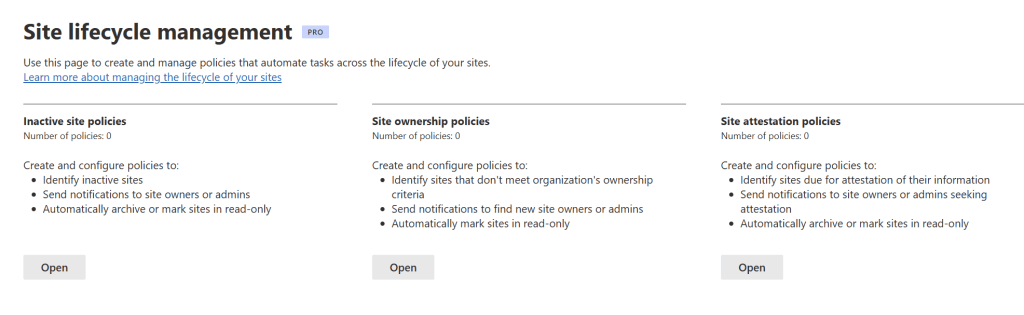
1. Inactive Site Policy
One of the most impactful lifecycle features is the ability to automatically detect inactive sites. This policy (when followed correctly) reduces clutter and prevents Microsoft 365 Copilot from surfacing irrelevant, outdated content.
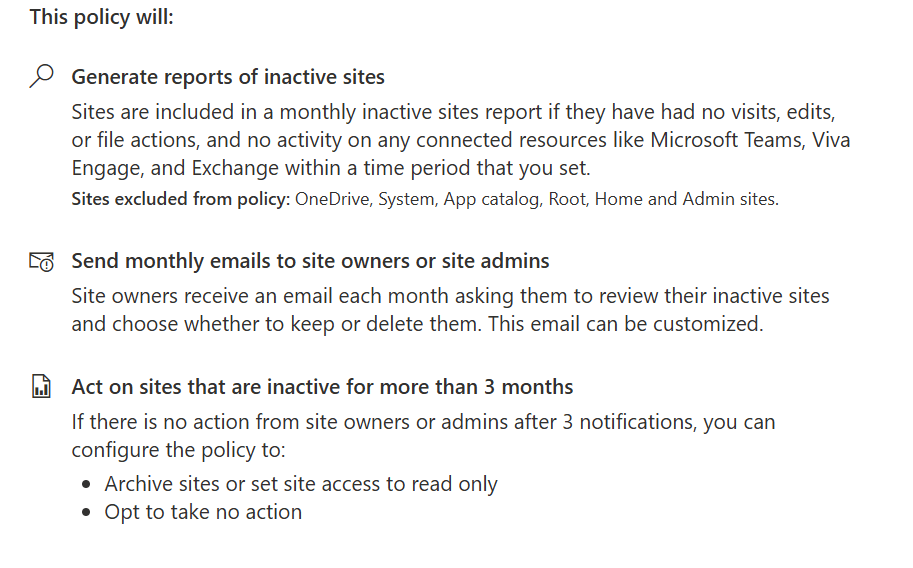
A site lifecycle management policy scans your environment for sites that have had no activity for a defined period (1, 2, 3, or 6 months) and when a site meets the criteria you specified:
- Site owners receive automated notification emails prompting them to review the site and its content and to confirm whether the site is still active.
- Administrators receive a detailed report including last activity date and notification status.
2. Site Ownership Policy
Site owner accountability is an important requirement when it comes to Microsoft 365 Copilot readiness. Lifecycle processes can- and will fail if the SharePoint sites are missing valid and/or responsible Site owners whose responsibilities are to certify site activity, perform access reviews, and verify permission settings.
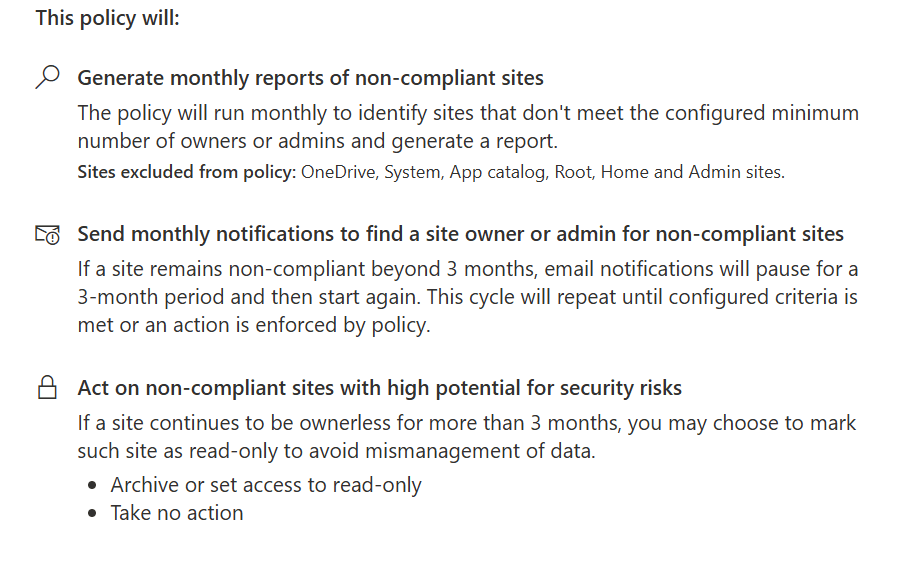
The Site ownership policy automatically identifies sites that do not meet the required “ownership criteria”, for example, sites missing at least two owners (or the number of required Site owners you have defined in the policy). When this policy is enabled:
- It can run in simulation mode (without sending out any notifications) to preview non‑compliant sites.
- When it is activated, it sends notifications to owners/potential owners.
- It will generate reports that allow admins to track compliance over time.
3. Site Attestation Policy
Through a Site Attestation Policy, SAM implements recurring “follow-up communication loops” with site owners, especially in the context of “inactive site management”. Site owners (Which you now have full control over thanks to the aforementioned “Site Ownership Policy”) receive monthly notifications prompting them to confirm activity or initiate deletion if the site is no longer needed.
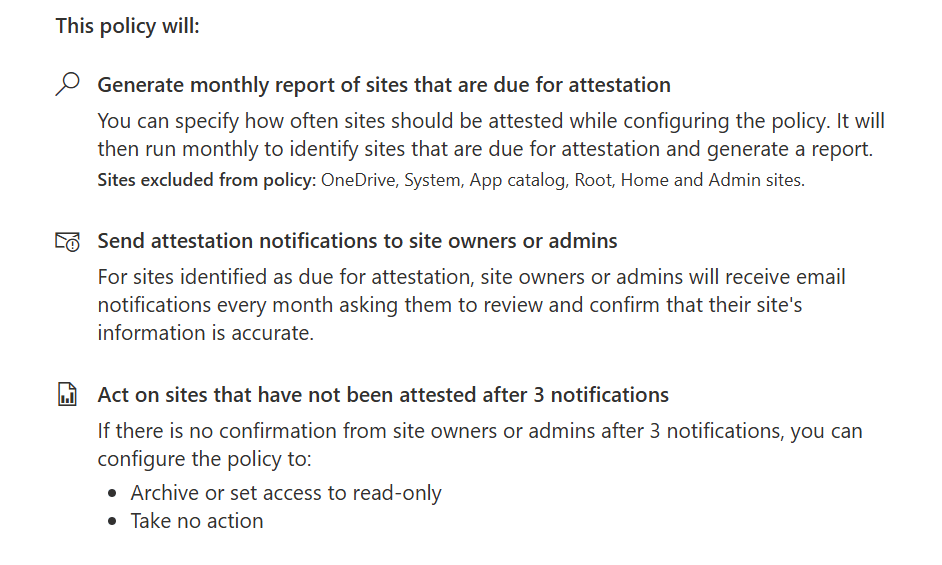
This process prevents “orphaned” content, keeps your SharePoint environment fresh and ensures the results you get from Microsoft 365 Copilot is- and remains relevant.
These policies create a structured lifecycle for every SharePoint site, ensuring:
- Cleaner data sources
Copilot is less likely to retrieve outdated or irrelevant information. - Stronger access governance
Valid site owners who owns both the site and its content, leads to faster, safer decision-making about who should be able to access what. - Reduced content sprawl
Removing unused sites enhances the accuracy and efficiency of Microsoft 365 Copilot queries. - Consistent compliance posture
Less excessive manual work when automated review cycles maintain your well-defined organizational standards.
Together, these capabilities becomes a “Site governance foundation” that directly improves the reliability and safety of Microsoft 365 Copilot.
My wishlist of Settings and options that would have made The Site Lifecycle Management Feature even better
We have the option to create Inactive site policies, Site ownership policies and Site attestation policies. I have set this up with a number of organisations and have had a lot of good experiences. The functionality absolutely serves its purpose but there are still some functions on my wishlist.
- When running Inactive site policies on Teams-Connected sites, it would be great if the policy not only operated on the SharePoint site but also on the team. An example would be that after 6 months of inactivity, you could set both the SharePoint site and the associated team to Read Only (in the same way as when manually archiving a Team). It might even be possible to trigger an archiving of the team and site and, in connection with this, a prefix would be set on the team/site (for example ARC-Name).
- When creating an Inactive site policy, you can choose between Inactivity 1, 2, 3 or 6 months. Here I miss the option 12 months (it is available on Site attestation policy so why not also on Inactive site policies?)
- Site ownership policy – Here you can specify whether email notifications should be sent to Current Site owners, Current site admins, Manager of previous site owner or Admin, or Active site members. It would have been useful if you also had a choice to instead send the email to an arbitrary email recipient. This would have been especially useful if you want to do an initial cleanup before you choose to roll out this policy to the entire organization. It would have simply reduced the risk of confusion if you as Admin had been able to ensure in advance that there were the right number of owners and admins on the sites.
- Support for Viva Engage-connected sites – When we set Policy scope in these policies, we have the option to choose between Classic sites, Communication sites, Group connected sites without teams, Team sites without Microsoft 365 Group and Teams-connected sites. Here I miss the option to also be able to choose Viva Engage-Connected sites as well. Many organizations use Viva Engage to such a large extent now that we should also be able to have Governance on the community-connected SharePoint sites that are there.
Conclusion
Overall, I am very satisfied with the functionality of SharePoint Advanced Management. It provides a wide range of advanced governance capabilities. The Site Lifecycle Management feature set is particularly crucial for achieving Microsoft 365 Copilot readiness. By automating the detection of inactive sites, enforcing clear ownership requirements, and maintaining recurring certification cycles, organizations can ensure that their SharePoint content stays clean, compliant, and optimized for AI processing.
In the next post we will take a closer look at the topic of “oversharing” and how you can use the “Data access Governance reports” feature in SharePoint Advanced Management.






 Providing Tips
Leave a comment