
Do you spend an unnecessary amount of time looking for your favorite pair of underwear or do you only find socks of different colors in the morning before you go to work? Then you probably also spend an unnecessary amount of time finding the right information when you are at work. With poor organization in your home, you create a mess only for yourself and that is completely okay because it does not affect anyone else but yourself.
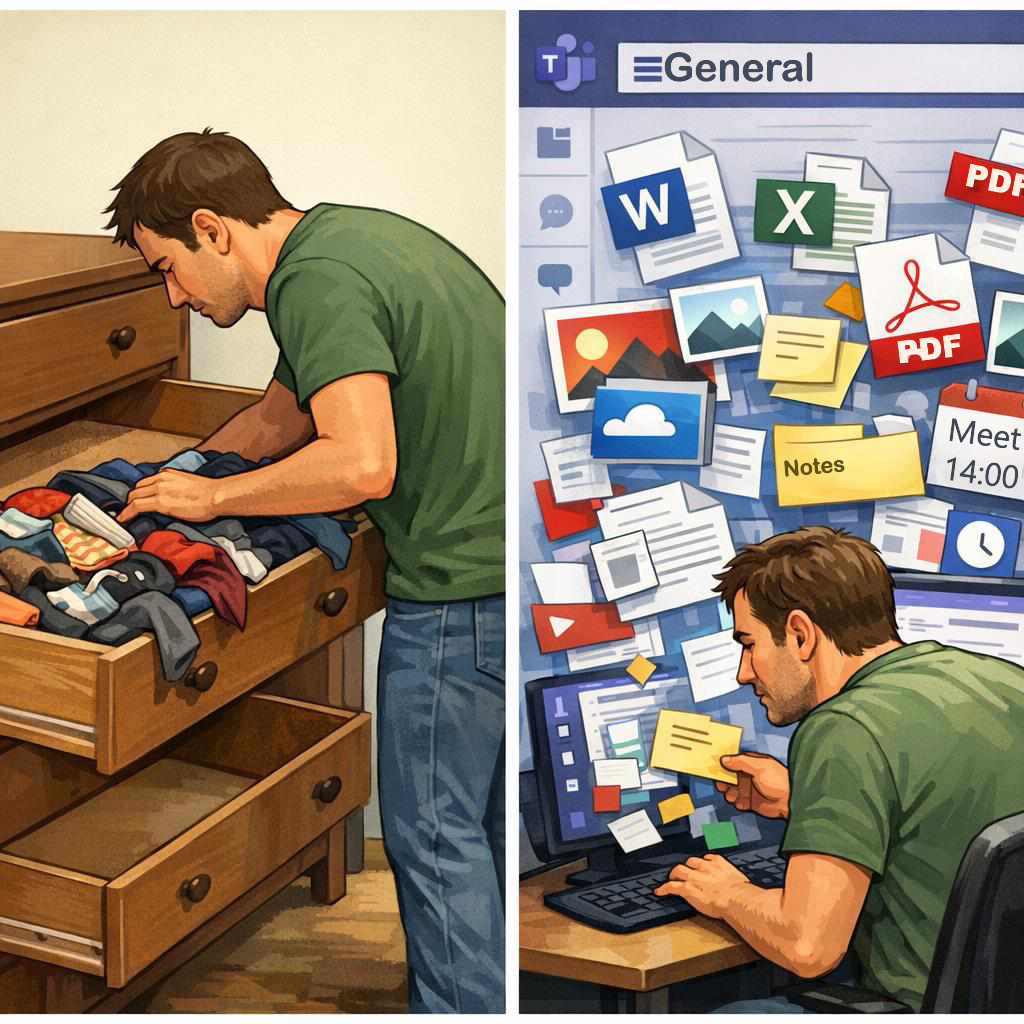
“If your drawers need structure, your Teams channels probably do too.”
With poor organization of the information at work, on the other hand, you create a mess not only for yourself but also for your colleagues. This means that you are wasting both yours and their time (thus also your company’s money). In an organized home, everything has its place. Socks and underwear in the top drawer. T-shirts in the middle drawer. Warm sweaters that you do not use very often are in the bottom drawer. The same applies when you have an organized Team in Microsoft Teams. Everything has its place there too.
“Stop hiding everything in the General channel.”
Each Team should must have Team channels that correspond to the main themes/topics that you collaborate on in the Team. Each channel contains context-specific documents, notes, loops, posts, and meetings. Imagine the information chaos that would arise if you put all of this in a single channel (the one often called “General”).
With an organized home you, and any family members you may have, will be happy and content because they know where everything is and they won’t have to dig and search in a single messy drawer. With an organized team, your colleagues will be happy and content because they know where everything is and they won’t have to search in a single messy team channel.
Just as your mother doesn’t like to clean up after you, your colleagues don’t like to search for and structure the information you produce.

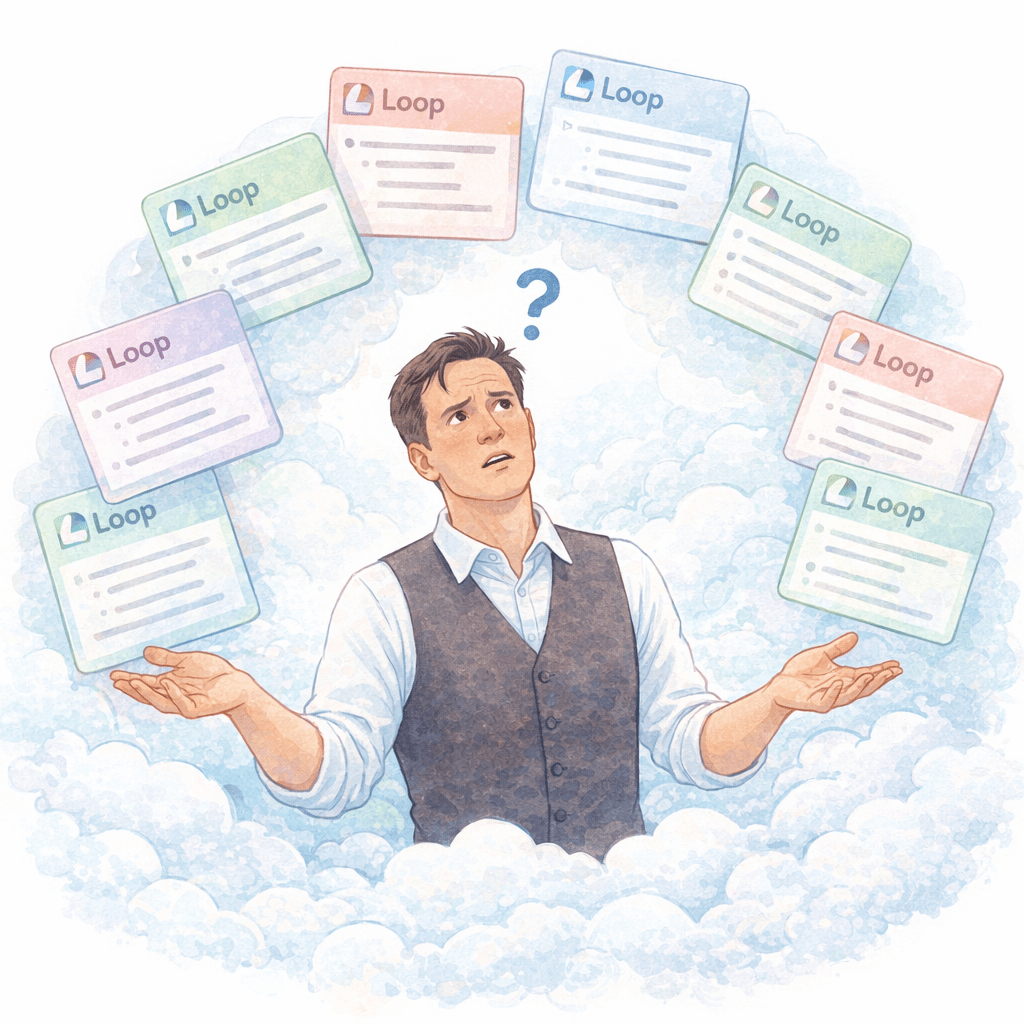
If you thought Copilot would solve this for you, nothing could be more wrong. Copilot also needs context and meaning to create good, reliable results.
My experience is that Copilot can only deliver good results if the data is well structured, correct, accessible and organized.
- Your mother is your mother and not your cleaning assistant.
- Copilot is your Copilot and not your cleaning assistant.
- Your colleagues are your colleagues who will co-produce great work together with you. (Your colleagues shouldn’t spend their time searching and cleaning.)
Ultimately, it is you who is responsible for ensuring that the information you produce is stored in the right place and that it is therefore easy to find.
Likewise, it is you who is responsible for ensuring that it is relevant.
It is actually also you who is responsible for ensuring that the information is sufficiently secured as well and that is when it is stored, found and secured in the right place where those who should have access to it have access to it and those who should not have access do not have access to it.
Proper use of Teams channels makes all this possible and this is exactly what you need to focus on initially when setting up a new team for use together with a workgroup.
AND as if good information structure isn’t good enough…
In addition to the, above mentioned, importance of structuring information in channels in teams, it is also important that you use the right settings and functions in the channels.
Combined or Separate view?
Even though a new Chat and Channels Experience was launched a while ago, I firmly believe that you should not use this experience but instead stick with the previous version where Chats and channels are clearly separated. I have written more about this in my article Use Microsoft Teams the right way Part 13 – Chat and channels Combined View or Chat and channels Separate View.
Channel Threads or Channel Posts
A while ago we also received an update that meant that when we create a new Teams channel, we can choose whether its post types should be the new “Threads” or the classic “Posts” ( Threads in Microsoft Teams channels ).
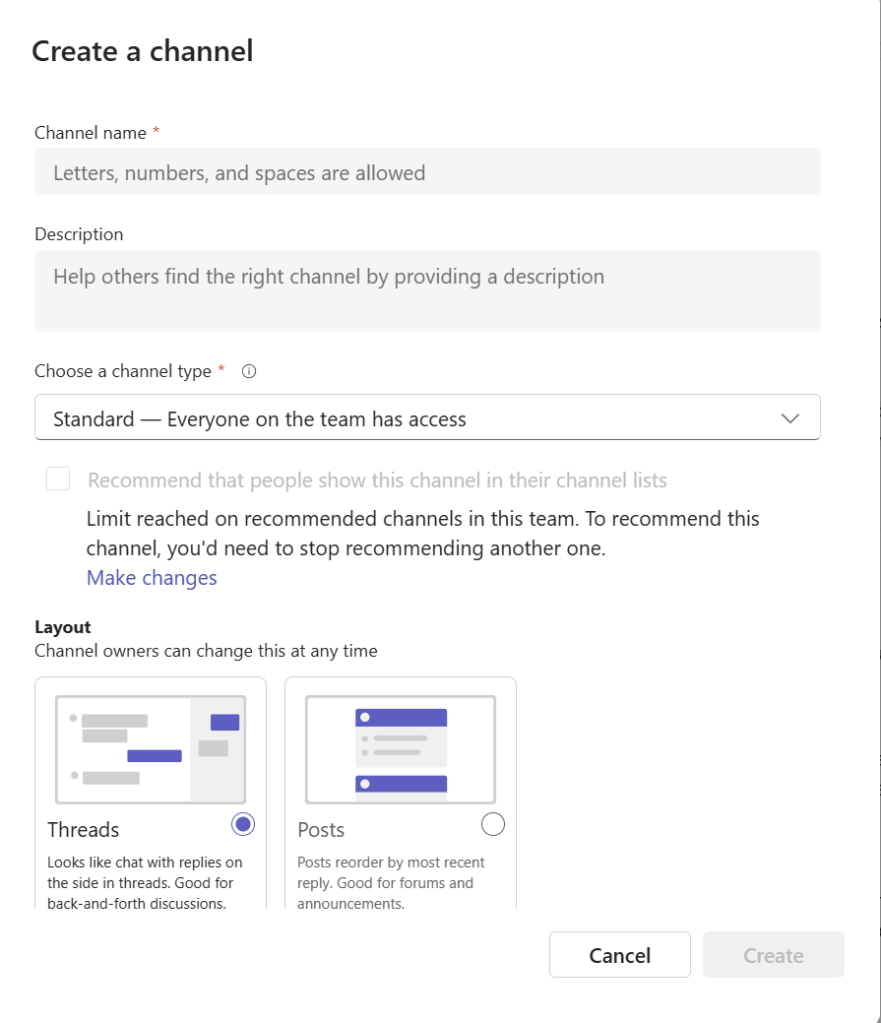
In my world, Threads is not even an option. Sure, it’s nice that there is an option to use this, but just because you can do it doesn’t mean it’s the right way to structure posts. My personal (and also strong) opinion is that “Threads” create disorder by making channel posts look like – and behave like – unstructured group chat. Hey, it’s precisely structure that is important and thus you should always, when creating channels, choose that its default posts should be of the type “Posts”. The use of “Threads” inevitably leads to more parallel sub-dialogues, more difficult topic delimitation (losing context) and, not least, more fragmented conversation history. In my opinion, this is one of the last things we need, since many people already today (with poorly structured channels) find it difficult to navigate in conversation history.
Summary
Structure in Microsoft Teams matters more than you think. Disorganized Teams Channels and disorganized Conversations are Costing You.
To avoid/reduce this problems/challenges you should:
Build clarity, save time, and strengthen collaboration in Teams channels! Good channel structure/information structure/conversation structure is the fastest productivity upgrade you can make.








 Providing Tips
Leave a comment