
A basic prerequisite for a safe and effective collaboration environment in an organization is that everyone has the necessary knowledge about the use of Microsoft 365. All employees need to have good knowledge of how to communicate and store the right information in the right way in the right place and with the associated right security settings and protection.
Historical sins and contemporary procrastination
I have seen many examples of organizations where this has not been taken seriously. There have been no guidelines and instructions on how to handle the information. This has resulted in everyone storing files where they feel best about it. This has resulted in many documents ending up where they shouldn’t be and thus not being properly protected.
When you locked the front door but missed closing the windows
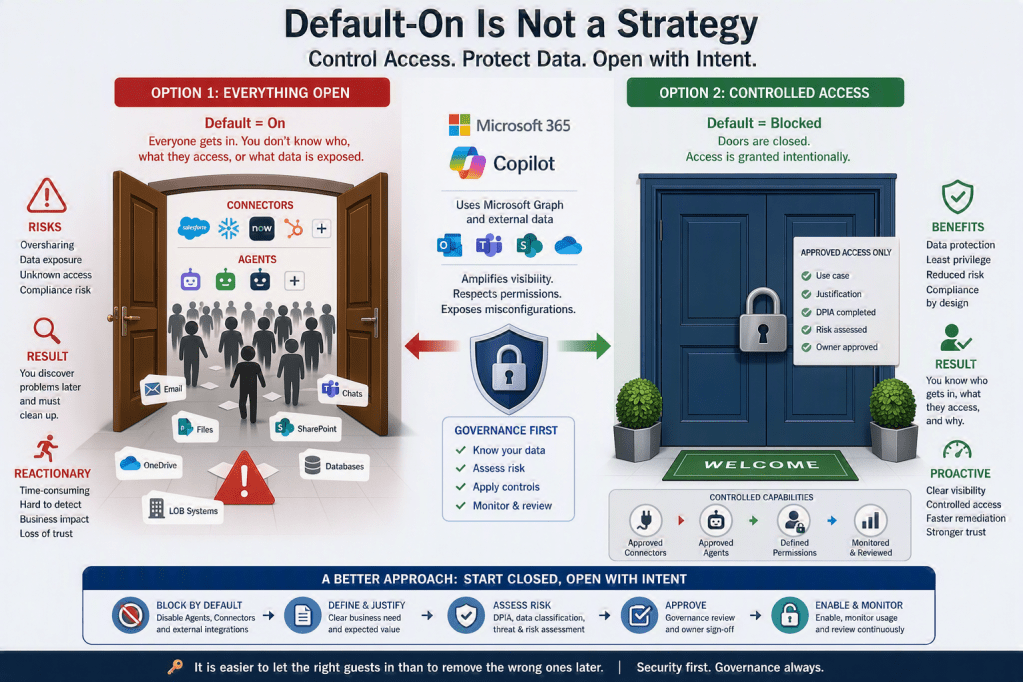
Often, too many people have had access to files without being aware that the files are accessible to many more people than those who were intended to have access to them. In addition, documents have been over-shared without having a good overview of what was shared with whom. When Delve and Microsoft Search got better and better, some companies experienced this involuntary openness through a less pleasant awakening. Instead of cleaning up and securing the information that was too open, some companies just deactivated Graph and thus Delve. This was a short-term and poor emergency solution (a.k.a “Procrastination”) instead of taking care of the real problem. Who knows? Maybe your company too have this basic problem today?

Now it can soon be even more obvious
In the not-too-distant future, Microsoft 365 Copilot will be launched and it will be better at searching for information than all of your employees combined. I can’t wait to get my hands on Microsoft 365 Copilot. I have already made sure that we are well prepared and I know that this will make my working day incredibly much better. In my opinion, Microsoft 365 Copilot is some of the greatest and most self-empowering functionality I’ve ever seen.
I trust Microsoft Search and i trust Microsoft 365 Copilot
I want to clarify and emphasize a very important point. Microsoft 365 Copilot is very reliable and secure. If you in your organization have poor access control now, Microsoft 365 Copilot is not to blame because the information it sees is too poorly protected. Microsoft 365 Copilot is so smart that when you use it as your digital assistant, it only searches the information you have access to, exactly as it should be.
You probably already understand that if you or your colleagues today have access to information that you should not have access to, then this will soon become extra clear.
Do a simple self-test
You can go to your organization’s Microsoft 365 Start page and there in the search field search for some sensitive topics and words that maybe you shouldn’t really have access rights to see. If you then come across something to which you should not have access rights, I recommend that you inform your IT department about the matter so that they can start analyzing the situation with access rights and the transfer problem in your organization.
“It is high time that this analysis- and security work is started immediately”
Collaboration in the best of worlds
So how should Collaboration be in a modern organization. Let’s look at some areas that you can take a closer look at. I believe that a common understanding of where the information should be stored and how to use the organization’s applications is incredibly important. With this knowledge, you gain trust in the applications and build security around the information.
Personal files, private files, work files. What to store where.
- Do you store your work folders at home in your living room bookshelf?
- Do you keep your family’s bills, contracts and photo albums on a shelf at work?
You probably don’t do either of those options (at least not to any great extent)

First, let’s clear up the difference between OneDrive for Business and OneDrive.
OneDrive for Business (@work) should not be confused with your personal OneDrive (@home) which is included in your personal Microsoft 365 account.
In everyday speech, we “IT geeks” often just refer to OneDrive regardless of which of the two services we mean. This very often leads to confusion for those who are not aware of the difference. Simply put, we can say, once and for all, that one of them is for your work and the other for your leisure/home.
- OneDrive for Business is a cloud storage service provided by your employer.
- OneDrive is a cloud storage service included in your Microsoft 365 Home Account (if you have one)
OneDrive
(The one you use at home)
OneDrive is a cloud storage service that allows you to store and access your files from anywhere, on any device. This is your personal OneDrive included in your personal Microsoft 365 Home account.
On your personal OneDrive, you store your family photos, movies and other files related to your life outside of work. In other words, such information that has nothing to do with your work.
OneDrive for Business
(The one you use at work)
OneDrive for Business is also a cloud storage service that allows you to store and access your files from anywhere, on any device and designed to help you store- and work on your individual job files primary but also collaboratively with others. Sure, it is technically possible to share files from OneDrive for Business but my opinion is that this type of use should be limited to sharing a few files with a few people.
E.g. If you are five colleagues who are going to organize a company party and are to collaborate on some files in connection with the preparations, then OneDrive for Business is a good place to store associated files. In this case, it is information that is not “business-relevant for your employer, but since it is about a company party it has to do with your job.
Use OneDrive for Business to store your individual files that are relevant to your work, such as documents, spreadsheets, presentations, images, videos, and more.
I strongly recommend that you should not store files that are sensitive, confidential, or regulated by policies or laws on OneDrive for Business. For example, you should not store files that contain personal information, health records, financial data, or intellectual property on OneDrive for Business. These files should be stored in a more secure location, such as a controlled SharePoint site which is configured with, by the company controlled necessary sufficient access rights and security policies.
Microsoft Teams
You use Microsoft Teams to communicate and co-produce documents. A team is a joint work area for a group of people who must produce and achieve something together.
In Teams, you use channels to structure the team’s communication and document production.
By having created relevant channels that correspond to the team’s “main topics-/themes”, you get a logical context to relate to when you collaborate.
With a smart and logical set of channels, everyone knows where to write posts and store documents in the right context. This also makes it completely natural to know where to later find the dialogue and the files you need.
Some examples
- In a Department team, there can be channels for common themes such as HR, Tips & Tricks and recurring department meetings.
- Use your department’s departmental team to create posts in the right channels to inform and/or ask questions of your colleagues in your department.
- Create and collaborate on the department’s relevant departmental documents under the Files tab in each channel.
- In a Project team, you can have one channel per project phase.
- Use a project’s project team to create posts in the right channels (corresponding to the project phases) to inform and/or ask questions of the members of the project.
- Create and collaborate on relevant project documents under the Files tab in the respective project channel.
- In a Process team with communication across your organizational units, there may be channels that correspond to topics you work with across the organization’s various departments and units.
- Use a process team to create posts in the right channels (corresponding to your common main topics) to inform and/or ask questions to everyone in the organization who is entering and working with this process.
- Create and collaborate on relevant process documents under the Files tab in the respective process channel.
SharePoint
A few years ago, we thought of SharePoint as THE collaboration tool. Here we created- and/or uploaded files in document libraries. At best, we shared the files with each other using sharing links. At worst, you could see people downloading files from SharePoint and then attaching them to emails and sending to colleagues to ask for comments on the files. Thankfully, the vast majority today have realized that this is not a sustainable way to collaborate. The reason why it turned out the way it did was that SharePoint lacked the communication dimension in the interaction. SharePoint was (and is) good at document storage and co-editing, but there was no good way to have a dialogue, so instead you made comments inside the documents and often sent e-mails to get feedback. Today, Microsoft Teams has solved this need. In Teams, we co-write and communicate in the right context and everything gathers in the right place.
My experience is that today SharePoint is still an incredibly powerful tool for managing documents, but the difference compared to before is that now we use SharePoint mainly to make ready-made documents available. The information on a SharePoint-based Employee Portal/intranet is produced by a few but be able to be consumed by most (or all). Here we put governing documents, instructions, templates in central document libraries that are maintained by a few people.
In addition, SharePoint today is very capable when it comes to efficient and easy news publishing of internal company news.
To make a short summary of what you should use SharePoint for:
- Central storage, administration and access to Governing documents such as guidelines, manuals, templates.
- Publication of corporate news that must have a standardized formatting and be easily accessible to everyone in the organization.
- Employee portals where a modern intranet is built with a clear, simple and standardized navigation by using Communication Sites and Hub sites for good content management, content presentation, visual branding and central rights management.
- Integration with Viva Engage to display information from communities in Viva Engage on relevant SharePoint pages or SharePoint sites.
Viva Engage
We rarely use Viva Engage (formerly Yammer) for managing files and documents. However, since Viva Engage now (when configured correctly) also supports management of files in the respective community’s M365 Group, you can store attach and manage files also in Viva Engage in a controlled way.
But Viva Engage is not about managing documents. Viva Engage is about networking.
- Do you need to ask a question to all employees in the company?
- Do you want a Community for all of you who are interested in photography?
- Do you need a forum where your CIO can inform everyone and share his thoughts and visions?
- Do you have employees who need a forum where they can contribute to your internal competence sharing by “working out loud”.
- Does IT need a forum where they can inform everyone about important operational announcements?
Then Viva Engage is the right “application”. Viva Engage is your company’s internal social network with both formal and informal communities. This is where you can “shout out in the woods” (Shout out and there is always someone who can answer). This is where you share your knowledge widely.
Viva Engage is where you build the company’s culture!
At last
Regardless of which of the above-mentioned tools/apps you use, everything is connected. When you use these tools in Microsoft 365, one of the biggest advantages is that everything is integrable. This means, among other things, that even if you sit all day and work in Microsoft Teams, you can access information from both Viva Engage and SharePoint and Planner and your calendar in one and the same interface.
If you have configured all the settings correctly and connected what needs to be connected and also have common guidelines for how you should work in Microsoft 365, you will be impressed by how much better you will be at collaborating.
It takes time before everyone “moves in the same pace”, but if you give it all a little time and help each other along the way, you have all the conditions to be best in class at Collaboration. (But again, don’t forget the security perspective).









Leave a Reply