
If you, in a hurry, get your company a Microsoft 365 Tenant and roll out all the functionality to the people with default settings and standard functionality, you create problems for yourself. Sure, most things may work great in the beginning, but afterwards you realize that you should have been wise from the start. If you have a job where you are responsible for functionality, availability and security in Microsoft 365 (or any other major IT platform), you need to manage the administration of the platform with good processes, tools and solutions. It goes without saying. It is a utopia to think that everything can become or remain perfect, but one can in any case do one’s best to control the most basic and central functions.
This post is not so much about technology in the form of Identity, client or data. It is rather about as it is about structure and order regarding the application layer.
Microsoft 365 Groups
A very central element of the applications/tools in Microsoft 365 is Microsoft 365 Groups. By “Central element” I mean that they are the “core of something bigger” and it is always good to attack the core when you want it to affect its surroundings.
Microsoft Teams
I have previously, in the article “Use Microsoft Teams the right way – Part 1 – Take control of your Teams“, written about how and why you should control the creation of new Teams in Microsoft Teams. This is solved by limiting the possibilities of setting up new Teams with standard functionality and instead directing users to a PowerApp where they, with or without approval functionality, can order new Teams. Here you can read about how to Manage who can create Microsoft 365 Groups
SharePoint
The same goes for SharePoint. Imagine the chaos that would quickly ensue if you let anyone in your organization create new SharePoint sites. How does a chaotic SharePoint environment affect your (hopefully) intelligent intranet? How many, uninitiated, know the difference between Communication Sites and Team Sites or have good enough knowledge to be able to decide when to use a Hubsite? Imagine the chaos that would ensue if 5000 employees were allowed to create new Modern Team Sites (not to be confused with a Team) in SharePoint without a controlled process and name these Sites anything without any sort of naming standard. How do you think an administrator’s everyday life and overview of all the organization’s M365 groups will look like? The answer is self-evident, this must be controlled/controlled.
Viva Engage
The same applies to Viva Engage. Imagine the chaos that would quickly ensue if you let anyone in the organization create new Viva Engage communities. In old Yammer it was a completely different thing, then we didn’t have M365 groups but in Viva Engage in its current form with “Native mode” each Viva Engage community has an associated M365 group. Imagine the chaos that occurs if you allow 5000 employees to be able to create new Viva Engage Communities without a controlled process and name these communities anything without any kind of naming standard. How do you think an administrator’s everyday life and overview of all the organization’s groups will look like? The answer is self-evident, this must be controlled/controlled.
Planner
The same goes for Planner. Imagine the chaos that quickly ensues if you let anyone in the organization create new Plans. In Planner, it is that way that each Plan has an associated M365 group. Imagine the chaos that ensues if you allow 5000 employees to be able to create new Plans without a controlled process and name these Plans anything without any kind of naming standard. How do you think an administrator’s everyday life and overview of all the organization’s groups will look like? The answer is self-explanatory, this too must be controlled/controlled.
At the moment I can’t see why you would have “standalone” Planners. If I have a need to plan and share tasks among several people, the Plan and the related work belong in a Team. If I need to plan tasks for myself, then I don’t need Planner because then I use To Do.
“Shared Plans = Teams, Individual Plans = To Do.”
Since each Plan in Planner also has its own M365 Group, the creation of Plans should be controlled in the same way (and for the same reasons) as you control the creation of new Teams, New SharePoint sites and new Viva Engage communities.
If you want to have control over Planner, you must limit the possibility for users to create “independent” Planner-Planners. We have received this limitation as a bonus if we already limited the creation of new Teams in the manner described above. So far so good. Considered from both a user perspective and an administrator perspective, I prefer when the Plans exist in an intuitive and correct context and thus this cannot mean that they exist as “independent M365 Groups” but instead as part of the M365 Groups that are connected to Teams.
If, for example, we think about using Planner in a project, each project should have its own project team and then we should use the “built-in” Planner plan of that project team. If I, as a project member, want to find a project plan, it is logical that I find that project plan in the project’s project team together with all project communications (channel posts), project documents, project meetings (channel meetings). The plan is of course added as a tab in one or more of the project team’s channels where it needs to be available “one click away”. To make it extra simple and intuitive for users, you should of course rename these tabs to “Project Plan”.
The basic, common, central solution
How then should one proceed to prevent the above-mentioned examples of chaos? If, as I mentioned above, you introduce a good team ordering process and, in connection with this, limit the possibility of freely establishing new Teams, this means in practical terms that you limit the possibility of establishing new Microsoft 365 Groups. When you do this, you get a lot of other restrictions as a bonus. Since Modern Team Sites in SharePoint and Plans in Planner are also based on Microsoft 365 Groups, you, as a regular user, cannot set up any of these either when you have introduced this restriction. The possible disadvantage is that if you cannot set up either Teams, SharePoint sites, Viva Engage communities or Planner-Plans, then it doesn’t make much sense to do anything. But we don’t want to block freedom or opportunities, we want everyone to be able to use these nice functions and tools in Microsoft 365. Therefore, we just want to control the establishment of them in the same (or similar) way as we do with Microsoft Teams.
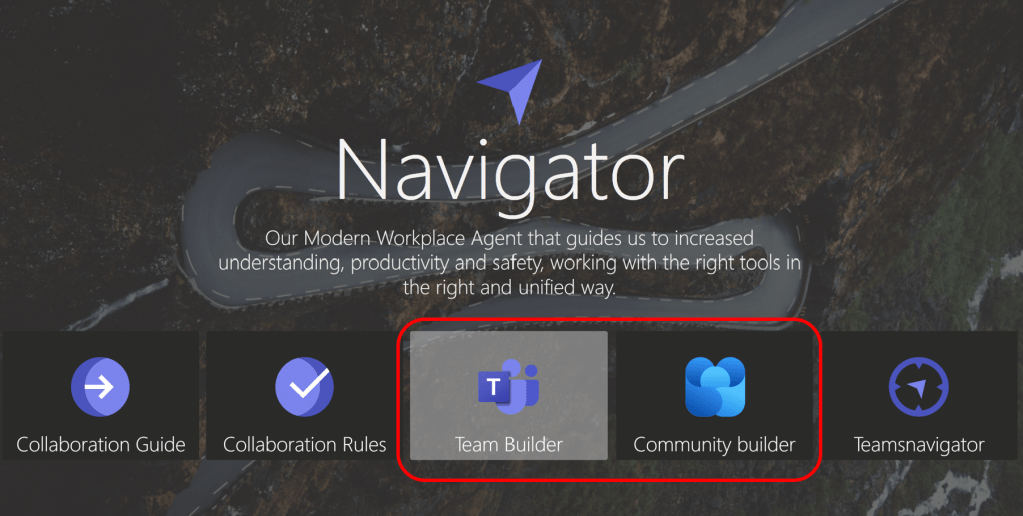
In the image above, you can see how to order new Teams and Viva Engage communities from a PowerApp in Teams. In the same App, you can also add functionality to order new Private channels in existing Teams.
Through such an ordering app, we do not limit our users’ possibilities. They still have the option to create Teams and Viva Engage communities and the big advantage is that they can do everything in one place, and this also guarantees that we can put real prefixes and settings on what is created. We don’t really limit anything. Instead, we promote freedom and inclusion while taking/gaining control. 😊
More posts about good control are on the way
I have many more examples of what needs to be controlled. Some of these examples are the creation of new Private Channels and Shared Channels as well as which Teams Apps the organization must allow use of. However, this may become a separate blog post in the future.
Training and user adoption
As you all already understand and as I always point out in most of my posts, you can never spend too much time on training and user adoption. It doesn’t help that we tech geeks and administrators are good at securing and controlling the functionality of Microsoft 365 by e.g. implement an ordering functionality as described above. It is of utmost importance for good success that all users know where, why, when and how. Inform, communicate, rehearse to ensure that the information reaches everyone (for that purpose, Viva Engage is the perfect tool.)





 Providing Tips
Leave a comment