
This post is a continuation of the previous post: ” Use Microsoft Teams the right way – Part 3 – Better Teams Meetings when using Channel Meetings”
Are you one of those people who cling to their old ways of working. Perhaps you are a bit of a traditional conservative “Ferdinand the Bull” who enjoys sitting under your cork oak tree with your file server and mail client?

At most, maybe you use Microsoft Teams to chat with your colleagues and conduct Teams meetings? Do you think it is unbeatable to send emails with attached files to your colleagues when you need to communicate with them? Have you ever thought that you could reduce the need to jump back and forth between several different windows and applications during a normal working day. Have you thought about whether you are really using Microsoft Teams in the right way? In part four of my ongoing blog series, you can read about what I think about old-fashioned ways of working and incorrect use of modern applications. Nice reading!
Stop toggling between applications
I don’t want to have to exit Microsoft Teams during my work day. If I have to switch between several different applications (email, browser, document libraries, OneDrive, CRM system, Notes, etc.) during my working day, I get tired of all the context changes, and the information is then also in different places and I don’t get things to hang together.

I want everything, that can be integrated or managed in Microsoft Teams, to be available in the Teams I work in. I also want my colleagues to work in the same way. There should be no ambiguity about “what I find where” or “where I should store what”. We will never be truly effective if we do not all work in the same way in one and the same interface and have a stated or unspoken agreement that this is the way it should be.
If you need more arguments to see the point of gathering all communications, documents, apps, connections and dynamic reports in one and the same interface and then working in a common way, you can read some great points in this article “How Much Time and Energy Do We Waste Toggling Between Applications?“. The article is two years old but still highly relevant.
Working in the right way
Once we have managed to collect and unite everything (or at least most of it) in Microsoft Teams, it is important that we start working in the right way inside Microsoft Teams.
What is the “wrong way of working”?
Everyone can make mistakes and everyone makes mistakes from time to time. It’s perfectly natural and it’s perfectly OK. It is usually a very good way to learn to do it right. What is not OK is to systematically work in the wrong way and to even hang on to work in the wrong way despite knowing that there are better ways to work. Unfortunately, it is all too common to continue working in the same old way as you have always done just because you are used to and comfortable with it.

Those who have that philosophy need to sharpen up and adapt to the times we live in now and the systems and knowledge we have available. Let’s look at some examples of some traditional and also less gifted ways of working.
Example 1 – Talk to just a few project participants 👎
Imagine that you are involved in a project. You and the other project participants work together in a room. As soon as you want to ask or say something, you take one or just a few of your employees out of the room with you and whisper about the matter. When you are done with the dialogue, you go into the other participants’ room again. The other project participants who were not with you whispering have no idea what you discussed and have probably missed information that was more or less important to them as well.

Example 2- Email with only a few project participants 👎
Imagine that you are involved in a project. You and the other project participants are not physically sitting together. As soon as you want to ask or say something, you send an email to one or just a few of your employees. Then follows a number of reply emails and reply emails on reply emails (in the worst case with attached files in several versions). When you have finished the email dialogue, the other project participants, who were not involved in the email exchange, have no idea what you discussed and have probably missed information that was more or less important to them as well.

Example 3- Private chat with only a few project participants 👎👎
Imagine that you are involved in a project. You want to inform and receive feedback on a change communicated by the customer. You start a Private Chat in Microsoft Teams with just a few of your project collaborators. A dialogue will then follow in the chat. At worst, you’ve shared a file here that’s on your OneDrive. When you have finished the chat dialogue, the other project participants, who were not part of the chat, have no idea what you discussed and have probably missed information that was more or less important to them as well. In addition, you have stored a project-relevant file on OneDrive instead of in the project’s Team, which means that it is only available to those you shared it with.

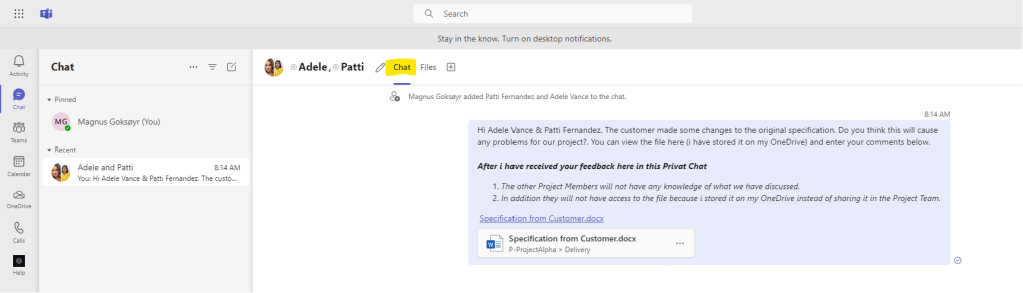
Example 3 is an example of having the right tool but using it the wrong way. You can almost compare it to using a wrench to peel an apple or combing your hair with a razor. In Example 1 and two, you do not use Microsoft Teams at all. In Example 3, you have actually created a Project Team in Microsoft Teams but still choose to communicate via Private Chat instead of posting in intended and relevant team channels. Private chat should ONLY be used for short clarifications on topics that are not or may not be relevant to colleagues or project participants
The right way to work in Microsoft Teams 👍👍
Rule number 1: You MUST stop using Private Teams chat instead of channel posts.
Already in 2019, I wrote the post “Do you use Private chats instead of Channel Conversations? Think about it and do it right.“. Unfortunately, it is still relevant. Using private chat groups in Microsoft Teams instead of channel posts is a good example of not understanding the point of not building silos and not having a good information structure where all relevant communication and information is stored and found in an intuitive and real context.

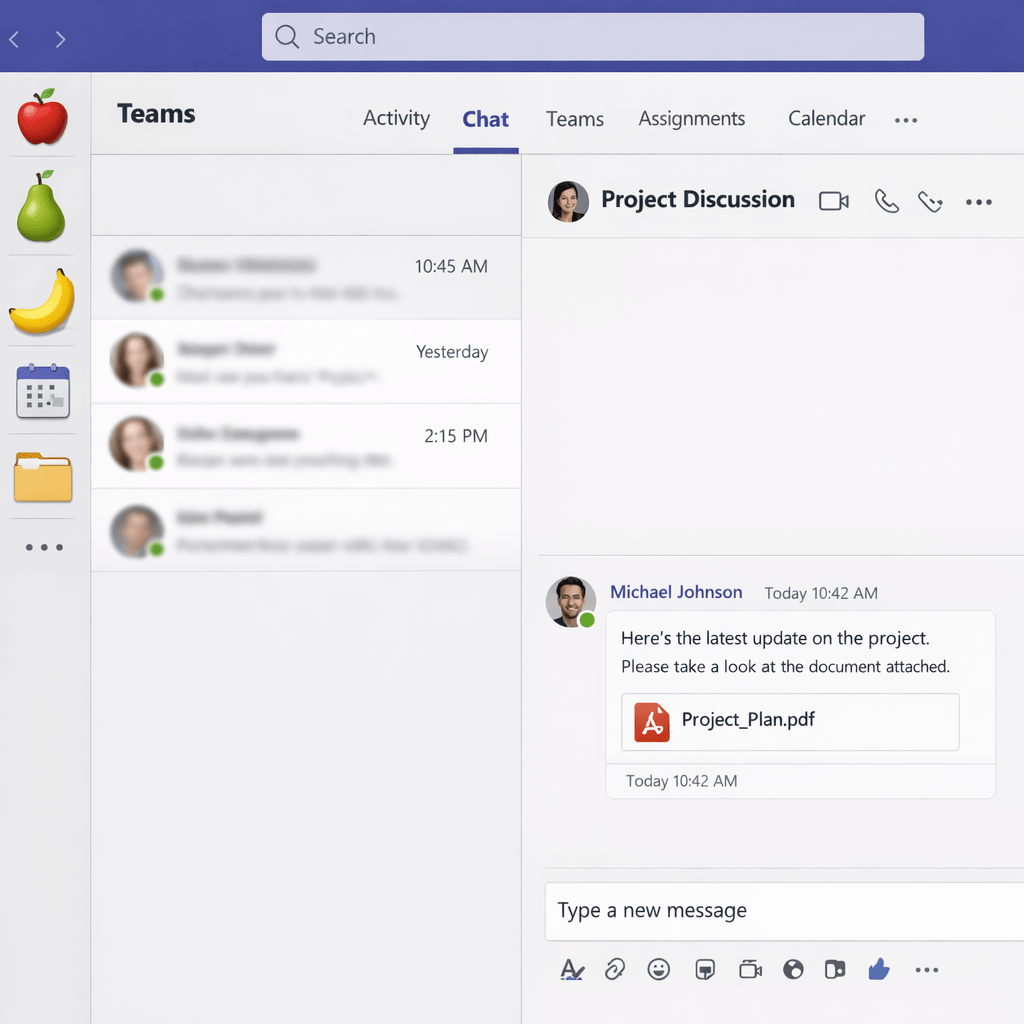
In the picture above, you see how one instead wrote a post in a project team in the right channel and mentioned the people for whom the message is mainly intended. This is an example of, in a contemporary way, working transparently and sharing knowledge and information in an open way so that those who may benefit from the information can take part in a simple way in its relevant context.
Adapt to developments and modern ways of working and you contribute to everyone being happier and you are thus guaranteed to create better results when everyone is given the opportunity to participate.








 Providing Tips
Leave a comment