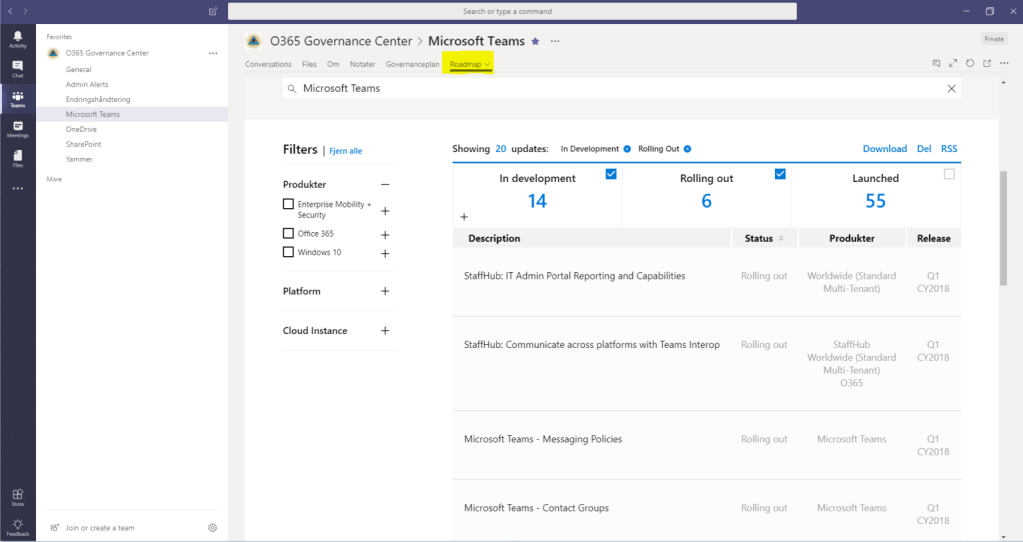
Are you one of the “chosen ones” with responsibility to keep track of changes in one or more services in Office 365? Congratulations, then your job has just become a little easier. With the new “Microsoft 365 Roadmap” it is now much easier to create filtered views that show the updates that are relevant to you.
As you may have read in my previous posts regarding “Office 365 Governance“, I use Microsoft Teams to get an overview of updates as well as structuring governance plans. I have a Team where each service has its own channel. In the channel of each service, I have (among other things) a tab that shows the “Office 365 roadmap” in a view that I have filtered to show updates only for the current service.
Now, when the new “Microsoft 365 Roadmap” was launched, of course, my previous home-made filtered views were broken. Sometimes this type of change causes some degree of irritation but this time it was only positive. The filtration capabilities of the Microsoft 365 Roadmap are much better than they were in the Office 365 Roadmap.
So now I’m sitting here, sipping a cup of coffee, creating new filtered views and updating my tabs. Below is an example of how easy you can create a filtered view that shows the updates for the service “Microsoft Teams” and how you embed the filtered view in a tab of a channel in your “Office 365 Governance Team”.
Open the Microsoft 365 Roadmap
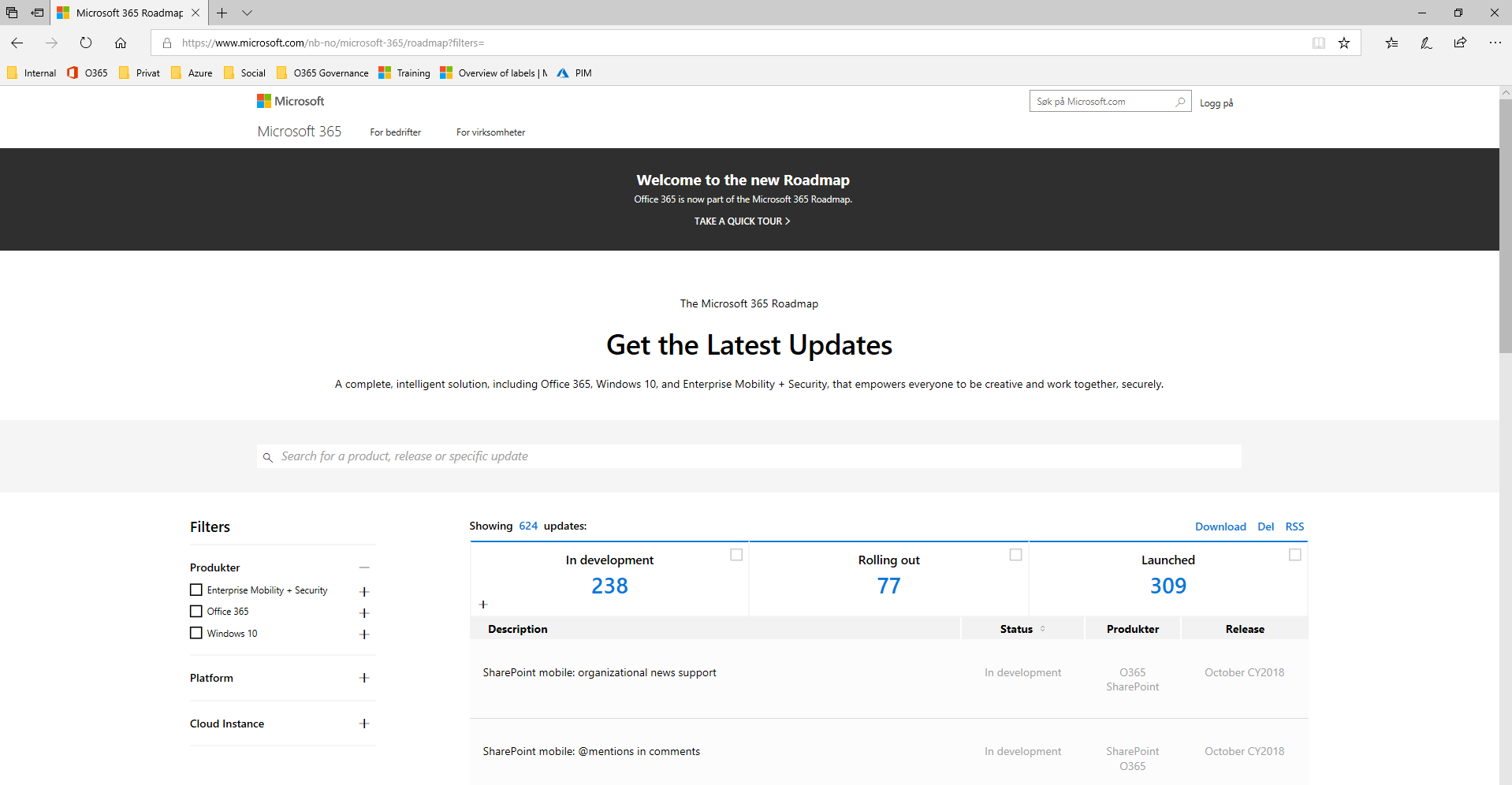
Filter on the service “Microsoft Teams” and status “In development” and “Rolling out”.

Copy the url of the view
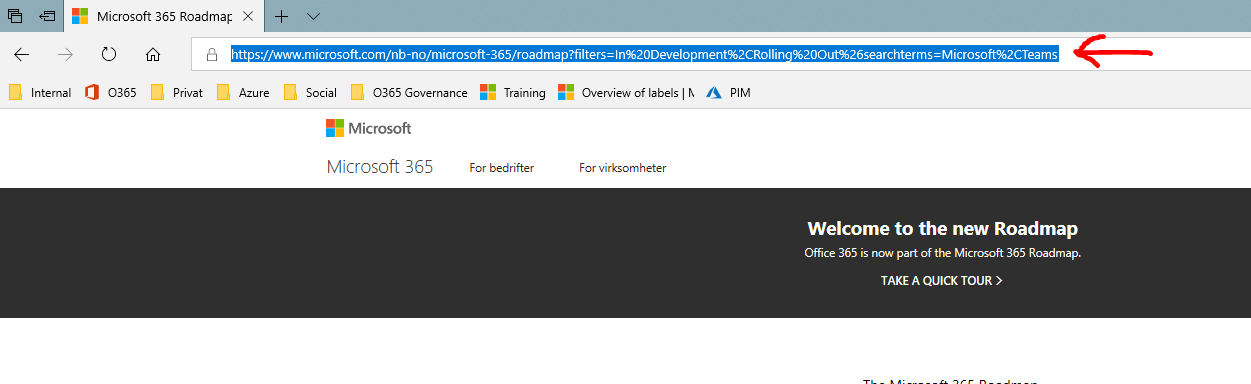
Open Your Office 365 Governance Team, go to the channel of the service and edit the url of the Roadmap tab.

The filtered view in the roadmap tab is now only displaying updates for the current service and you do not have to view the updates of the services that you are not responsible for. This saves you from unnecessary noise that could otherwise steal your focus from your core area.
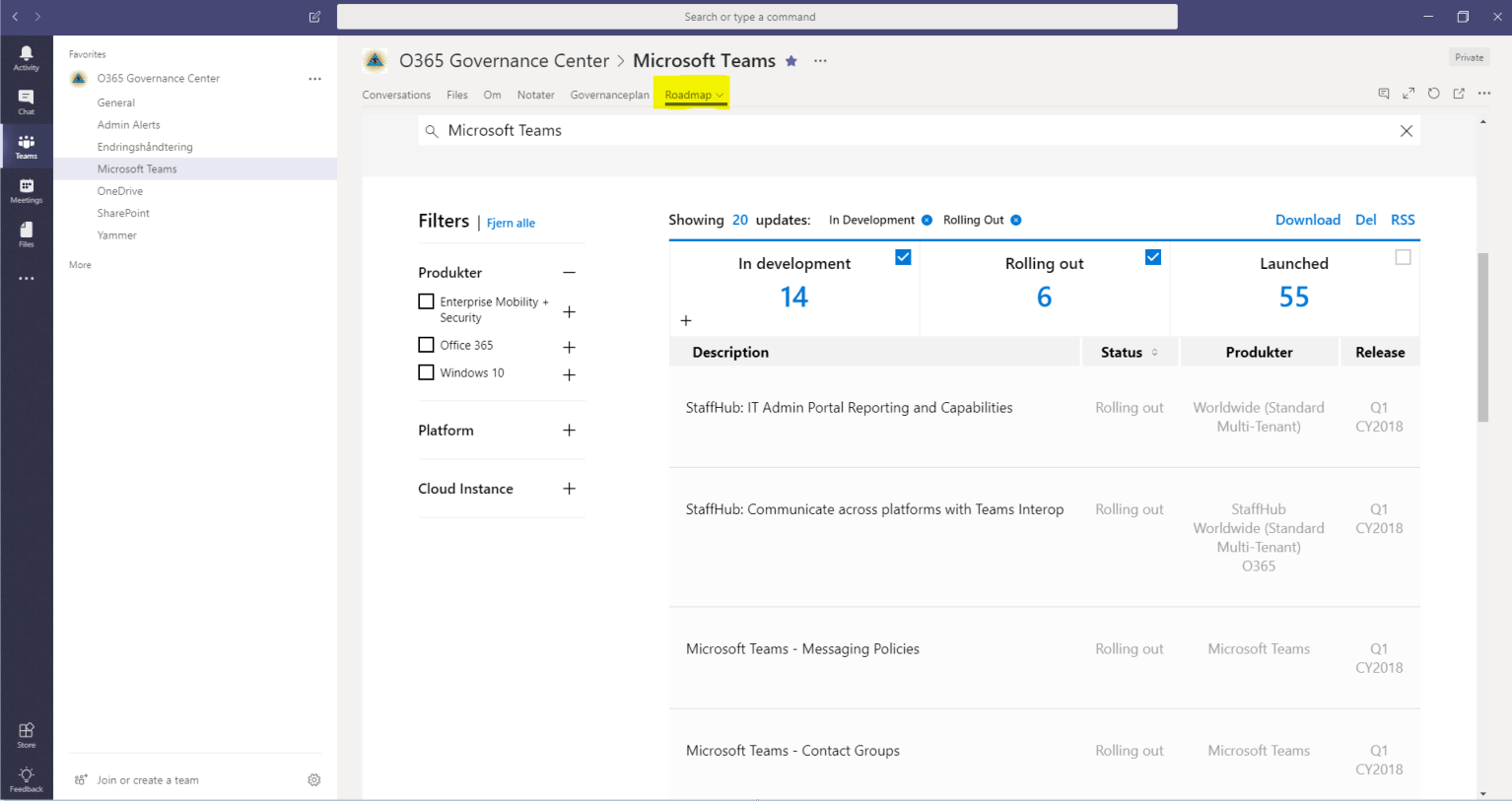
Now, repeat this exercise and update the “Roadmap tabs” for the channels of the other services.







 Providing Tips
Leave a comment