
This blog post is a continuation of the blog series “Use Microsoft Teams the right way” and has a more end-user-focused perspective.
Previous blog post “Use Microsoft Teams the right way Part 10 – Preparations in Microsoft Teams and SharePoint before implementing Multitenant Organization (MTO) or Copilot” was about the necessary preparations one must do before
implementing Multitenant Organization (MTO) or Copilot.
- Most of You have probably experienced at some point during the second half of 2024 that you could no longer find a channel that you have used before.
- You may also, during the same time, have been contacted by colleagues wondering why you did not respond to their posts.
- You may even have experienced, when you had returned from your summer vacation in 2024, that everything was unusually quiet and a bit empty when you opened Microsoft Teams to start your workday again.
The reason for these experiences was most likely that your “inactive channels” had been automatically hidden.
This functionality was communicated with the name “Microsoft Teams: Hiding of inactive channels” via Microsoft 365 Roadmap in may 2024. This roadmap item stated that this would be rolled out in july 2024.
If you are not one of those who faithfully follows all updates from the M365 Message Center, it is of course easy to miss this information, especially when summer approached and you were probably busy completing everything that needed to be done before going on your summer vacation.
The text of this Roadmap Item stated the following:
“Easily keep your channels list relevant. Teams will automatically detect inactive channels you haven’t interacted with in a while, and automatically hide them for you. You have the option to review the list of channels and unhide some or all of them, opt out of automatic hiding from settings, or initiate this process on demand.”
Instead of being able to opt out of this functionality, I personally would have preferred that you could choose to opt in, but unfortunately that was not possible and thus this automatic opt-in meant that many people experienced that their channels and thus also their configured notifications and follow-settings disappeared.
Well, What has been done is done so that for those of us who have a need for control and prefer to decide for ourselves what is relevant and what we want to follow, it took a little work to find the channels that have been hidden and to opt out of this functionality as quickly as possible.
Now on to the smart and really good news.
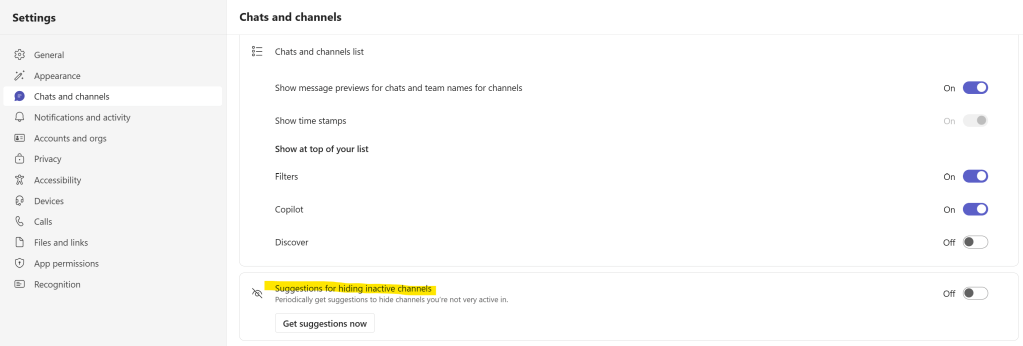
Now it looks like automatic hiding of inactive channels has been replaced (or is being replaced) with “Suggestions for hiding inactive channels”. This is a feature that I really like and I’m grateful that you can now choose for yourself. 👍👍👍
You can find/activate this under settings in your Teams client.
But what about the channels that have already been hidden?
If you are one of those who have not already restored your automatically hidden channels to visible again, you can see an instruction here that shows you how to find and restore them.
Show, hide, or favorite a channel in Microsoft Teams
And when you’ve fixed them back, you can read here how to configure your channel notifications so you don’t miss what’s important to you.
Customize channel notifications in Microsoft Teams
All’s well that ends well. Now we can continue working on and keep the channels we want to keep and also keep the channel notifications we consider important to us.







 Providing Tips
Leave a comment