
This blog post is a continuation of the blog series “Use Microsoft Teams the right way”. Previous blog post “Part 5 – Connect your SharePoint Home Site to Microsoft Teams with the Viva Connections app” was about how to get your intranet/Employee portal into Microsoft Teams. Here we take it a step further and show the value of Viva Engage and how you can also integrate it into Microsoft Teams.
As usual, we begin by repeating the importance of choosing the right tool for the right need 👇
Most of us who spend our working days in Microsoft 365 have a large and modern toolbox available. In Microsoft 365 there is something for everyone and with the right tools for the right task, we have what we need to be able to carry out our daily work in an efficient and modern way. But in the same way that an inexperienced/bad carpenter uses a wrench to drive a nail, a poorly informed information worker can use an application in Microsoft 365 in the wrong way. An example of this could be when using a large private chat group instead of having a dialogue via channel posts in a team. Another (and perhaps even worse) example is someone sending an internal email with attachments to a large number of colleagues).
In your organization you have a need for different types of communication. When you have many choices to communicate in different ways and in different tools, if you do not have clear guidelines, this can lead to confusion (and great personal creativity) in the organization. If the organization does not have a clear “instruction book” or if you have not “passed the course”, then you, as an information worker, with many different applications at your disposal, thus have great opportunities to use the right communication tool in the wrong way or even the wrong communication tool in the wrong way.
I believe that it must be beyond doubt which communication tool/application to use when. Why you should use it and not least how you should use it. You should have these guidelines very easily accessible on your Employee Portal/Intranet and in Microsoft Teams. Everyone should, at the slightest doubt, be able to easily see what to choose for the communication/collaboration they intend to have.
Enough with the admonitions now. I have previously written extensively about Microsoft Teams, SharePoint, OneDrive and Viva Connections.
- Microsoft Teams is primarily your common daily workspace where most of your information and dialogue should be gathered. In Microsoft Teams you communicate and collaborate on documents in connection with the fact that you, for one purpose or another, produce something together in a work group.
- You primarily use SharePoint for the Employee portal/intranet where you should all be able to find the instructions, manuals and corporate news that are relevant to you.
- OneDrive for Business is each employee’s personal file storage area where he or she can work on his or her “own” files that are not relevant to share with a work group.
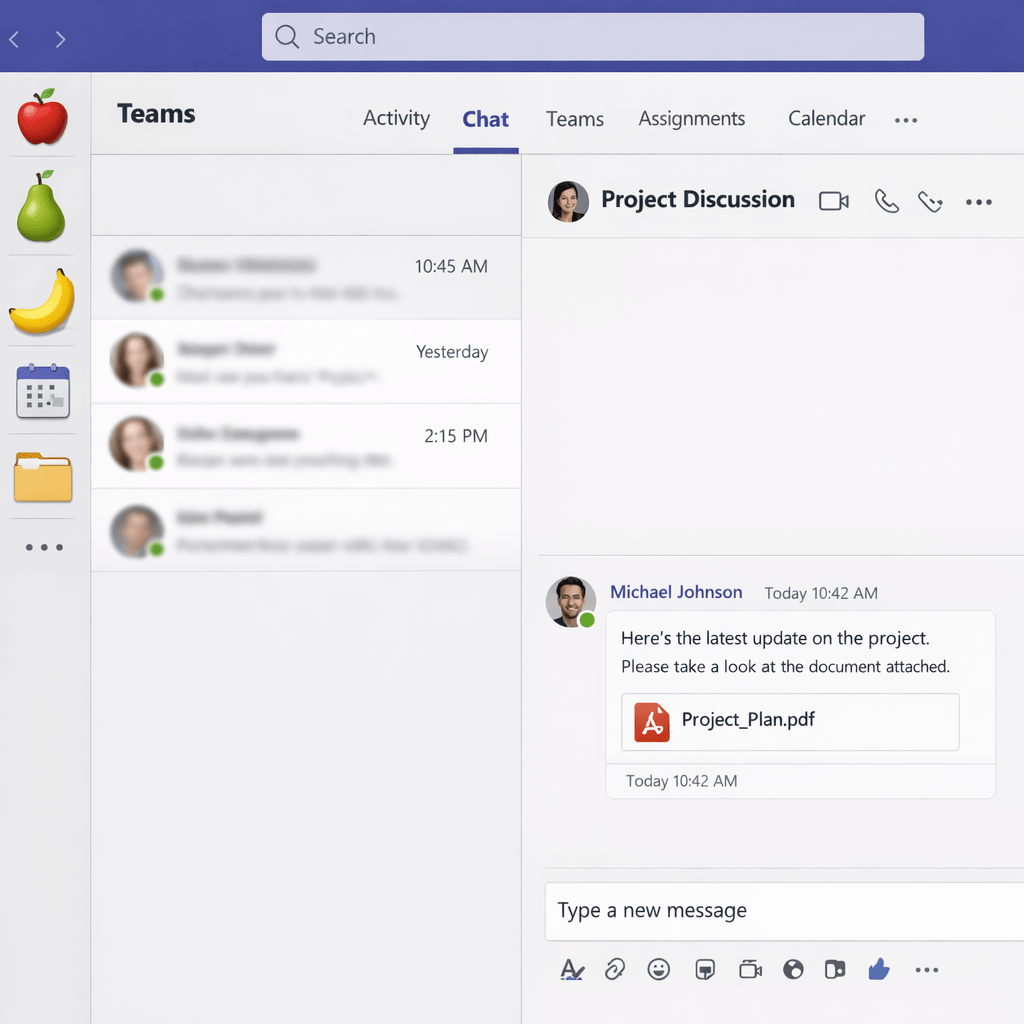
Apps in the left menu in Microsoft Teams
- Your OneDrive for Business is available as an icon in the left menu when working in Microsoft Teams.
- Viva Connections (SharePoint/Intranet/Employee Portal) is also available as an icon in the left menu when working in Microsoft Teams.
- Thus, With Microsoft Teams, you have, as you should, collected your “collaboration” and your “information” available in a common interface.
What about networking? Is there an app for that?
OK, so far so good but isn’t there something we’re missing? Yes, it is. We must not forget the need for “Networking”. All companies and organizations always have a number of more or less formal networks. These networks can be social networks or networks for knowledge sharing in different areas of interest. So what should you use when it comes to networking?
Just because you can use Microsoft Teams for social networking, it is far from certain that it is the best tool for social networking. There are also (hear and be amazed) those individuals, groups and organizations that use large email groups and distribution lists to perform a primitive, ancient and ineffective form of social networking. Yes, you can use email groups/distribution lists share information or ask the question and everyone answers everyone. However, that is the craziest form of networking as it creates an incredible amount of emails going back and forth. It creates stress, it steals time, it steals focus and you can’t escape.
In Microsoft 365 we have Viva Engage (formerly known as Yammer) which is an eminent communication tool for internal social networking.
If you are not yet familiar with Viva Engage you are might familiar with Workplace from Meta? Viva Engage has a lot of similarities with Workplace from Meta.
First some (but still relevant) information about Workplace from Meta.
Meta recently released information that “Workplace from Meta is going away”. For me, this news came like a bolt from the blue.
If you go to Workplace you now see a banner that says:
“Workplace from Meta is going away. You will be able to continue using Workplace until August 31, 2025. Visit our Help Center to find out more.”
If you continue from the banner to the Help Center, the following information is displayed about the time perspective that today’s workplace customers now have to deal with.
- Timeline
Until August 31, 2025: You will be able to continue using Workplace as usual. - September 1, 2025 – May 31, 2026: Workplace will only be accessible to read and download existing data.
- June 1, 2026: Your access to Workplace will be terminated and your Workplace will be deleted.
If today you use Microsoft 365 for “Collaboration and Communication” and, in addition, use Workplace from Meta for “Networking”, then you do not need to panic and wonder what to do now that Workplace is going to the grave.
The solution is Viva Engage – and you already have it in Microsoft 365.
Viva Engage looks very similar so the threshold for your users will be very small. In addition, you probably already have most of the licenses so it brings a welcome annual price reduction when you don’t have to pay Workplace licenses in addition to those of your Microsoft 365 licenses that include Viva Engage.
I think it’s positive that everyone now needs to move to Viva Engage from Workplace because Viva Engage is related to Microsoft 365 and standardizing on one platform is almost always exclusively positive, both in terms of licensing but also because of reduced integration needs and not least the ownership and storage of the information.
Viva Engage – THE application for internal networking/internal communities
As you can already tell, Viva Engage is, without a doubt, one of my favorite tools. Now, I’m not going to dedicate this blog post to explaining everything you can use Viva Engage for. Instead, you can read about it here:
Participation, inclusion and transparency are keywords for networking in the right way. With Viva Engage configured in the right way, implemented in the right way, managed in the right way and, not least, used in the right way, everyone in the organization is given the opportunity to make their voice heard.
Viva Engage is also available as an app on your mobile phone. Here you can read about how you Set up Viva Engage on your mobile phone and here you can Discover the features that keep you connected on the Viva Engage mobile app.
Of course, Copilot also comes in Viva Engage and vice versa, Viva Engage is an incredibly powerful tool that you can use when you roll out Copilots in all its shapes and colors to your organization. All questions and discussions about Copilot can be handled in dedicated communities where everyone can be included and participate.
But we must not forget the “closing paragraph” of this blog post. As the title says “Integrate your internal social network Viva Engage in Microsoft Teams” we conclude with how you can also integrate Viva Engage into Microsoft Teams so that you don’t have to jump out of Microsoft Teams and open a browser window to then enter https://web.yammer.com/ . Lets stay in Microsoft Teams.
The Viva Engage app is also, like Viva Connections, available as an App in Teams. In the article “Get started with Viva Engage” you can read an instruction on how to add the Viva Engage-app to the left menu in Microsoft Teams.
It will be even better if your Microsoft Teams Administrator distributes the Viva Engage app icon to all of you. He/she does so easily in the Microsoft Teams Admin Center by adding the Viva Engage app to the “Setup Policy” called “Global (Org-wide default).
This was part 6 of the blog series “Use Microsoft Teams the right way”. Soon there will be a sequel, so stay tuned 😊 .





 Providing Tips
Leave a comment