
Those of you who follow all the updates posted on the Microsoft 365 Roadmap may have caught “Microsoft Teams: App centric management in Teams Admin Center to manage the Apps access for tenants, end-users and groups” when it was posted there on August 23, 2023? I have to reluctantly admit that this update passed my otherwise sharp eyes when it comes to updates posted in the Microsoft 365 Roadmap and/or Microsoft 365 Message Center.

As if it wasn’t enough that I missed it in the Microsoft 365 Roadmap, I also missed it in the Microsoft 365 Message Center when it appeared there on November 11, 2023.

There is also more information on this topic on Microsoft Learn in the “Use app centric management to manage apps” article.
Since I missed all of this, I guess there might be a few more people who missed it and so I thought I’d give a short and simplified explanation of what this update has entailed.
What is all this about?
With the benefit of hindsight, I can now inform you that this is about Teams apps and how to control their accessibility. Who should be able to add apps and which apps should be possible to use in the organization. Those of you who know me or have followed my previous blog posts know that I want to be in control. For me, Governance is incredibly important regardless of which applications it applies to in the toolbox that Microsoft 365 offers us. I love innovation and news, BUT I am a dedicated Governance fan who prefers to throttle most things down to a minimum in order to subsequently open up functionality when the functionality is requested or needed, and not least that you first verified its functionality and valued the security aspects.
On to the changes I am now experiencing after this update
We have been used to the fact that if we have to decide which Teams Apps the users should be able to add to their Teams, we have either gone to the Microsoft Teams Admin Center (TAC) and then navigated to “Teams Apps” and under that we have been able to go into “Manage apps” to be able to either “Mass block” all apps and then activate the ones we actually want to be available.
We have also had “Permission Policies” as a separate menu option and there we have also been able to control whether users should be able to use proprietary apps, Microsoft apps or third-party apps. If you now click on “Permission Policies” you will be greeted by this information.

And when I click here on the “Open Manage apps” button, I am taken further here to just “Manage apps”.
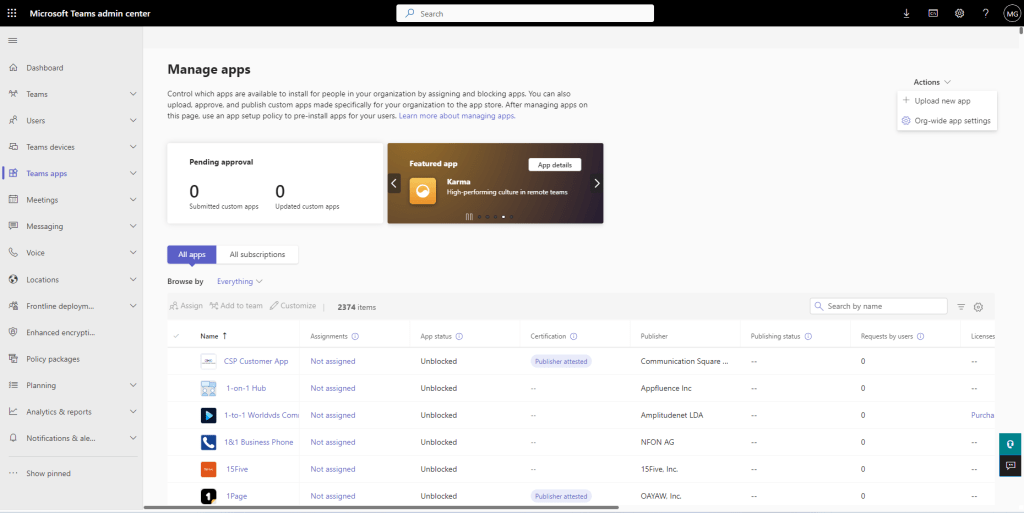
OK. Maybe not that interesting but what is very interesting and what scared me was that suddenly all the team apps are no longer blocked. Here I see that “App status” is Unblocked on all Team apps. My first thought is of course “Oh no! Now many of my creative colleagues have probably adopted a lot of team apps that we have no control over. Now I have to mark them all and block them again and then open up the ones that should be allowed “. I therefore try to select several of the applications and click on “Block” but no exactly, that button or functionality is not there. I can’t even select multiple Teams apps at once but have to go into them one by one if I want to block them. I can’t because there are more than 2000 team apps to do this job on. I then contacted (as usual) my good colleague Håvard Øverås, who always has one or another PowerShell script laying around that always solves most things, and if he doesn’t have it, he builds it quickly and easily. But this time, unfortunately, it wasn’t that simple. My research therefore continued.
What do we find under “Actions then?
In my despair, I click on “Actions” and select “Org-wide app settings” in the hope that there must be something I can do about it.

Here we are faced with the following settings

Tailored apps
I quickly scroll past this as it is not something I am interested in now.
Microsoft apps
To my delight, I see that at least the settings for “Microsoft apps” are unchanged. Of course, this setting leaves most of us available by default. If there is an app from Microsoft, we expect it to be useful and add value. Sometimes it might be one of these apps that we don’t want to be available and then it’s easy to block one or more so that only the ones we want to be available actually are. Which Microsoft apps should be available is entirely up to the organization’s guidelines and regulations (in other words “Application Governance”).
Third party apps
Hello! What happened here? If I remember correctly, you could previously easily specify here that all third-party apps would be blocked by default and then you could open up a selection of these that you wanted to be available to everyone in the organization. With the current challenge, I choose that the settings here may be deactivated for so long. The news “Auto install approved apps” which looks like this looks quite reasonable but at the moment I don’t turn it on. I want control first and know what has happened to all the Teams apps that I had previously blocked. The search for the answer therefore continues unabated.
Custom apps
Under the “Custom apps” setting, you have been able (and still can) specify whether users should be able to upload self-developed apps. How to set this setting is up to each organization to decide. It’s quite nice to have good control over this so that not just anyone can build any app and then upload it. Who should be allowed to do what here is up to the organization’s guidelines and regulations (in other words and also here “Application Governance”).
The investigation continues – Back to “Manage apps”
I close “Org-wide app settings” and jump out to “Manage apps” again. I click on a team app to see what capabilities I have inside the team app but the only thing I can do there is block or unblock it.
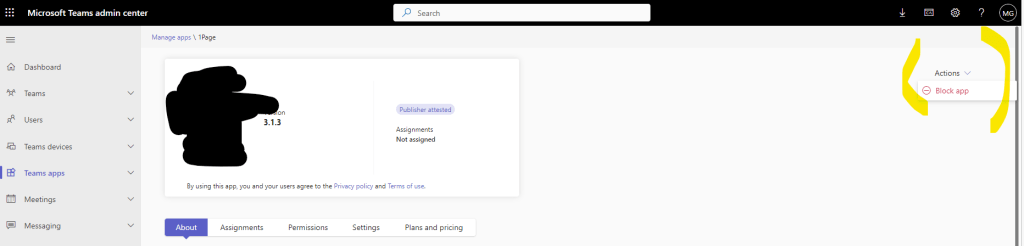
Too much manual work for my taste so I exit to “Manage apps again”.
NOW I SEE IT! Regardless of the “App status” a Teamsapp has, we also have a column called “Assignments”.

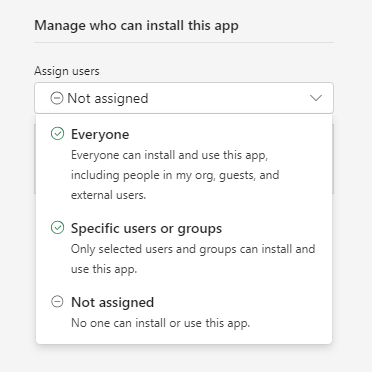
Here I have a number of Team apps that are “Assigned” (which can therefore be installed) and I also have a number of Team apps that are “Not assigned”. Much to my delight, I now see that all the team apps that I had previously blocked are now “Not assigned” and thus not possible for users to install (before I possibly assign them). The options you have to choose from here are “Everyone”, “Specific users or groups”, “Not assigned” and as long as they are “Not assigned” no harm is done.
A lot of work or a little work as a result of this update?
So for me, this update didn’t mean that much extra work because at least all the team apps I previously blocked didn’t suddenly become available to users. All the more work now for the rest of you who did not, in advance, have the team apps in order and had blocked those that would not be available.
A good advice
Take some time over the next few days to go through all your apps and see which ones are “Assigned” and “Not assigned” and “Blocked” and “Not blocked.” Make sure your settings are adjusted so that you don’t suddenly have a cloud where every imaginable app has been installed that you have no control over. Minimize the number of available apps to what is necessary and rather open them up later.
If you know of an existing or can build a good PowerShell script to bulk update these settings, I’d be happy to hear about it. This is something that many could have greatly benefited from. If you don’t, I’m sure that my good colleague the almighty Håvard will do everything he can to fix this as soon as possible, and just in case, I’ll post a link here to his solution.







 Providing Tips
Leave a comment